How to See Who Unfollowed You on Instagram With ChatGPT (and When It Gets It Wrong)
See who unfollowed you on Instagram with ChatGPT: export followers as JSON, upload the files, force a code-based compare, and use two exports for real unfollowers.

"How to see who unfollowed you on Instagram with ChatGPT" is now one of the fastest-growing versions of the oldest Instagram question there is. The videos make it look like magic: paste something into ChatGPT, get a list of names. The truth is more useful than the magic. ChatGPT cannot see your Instagram account at all, but it is a decent spreadsheet when you hand it the right files and give it the right instructions.
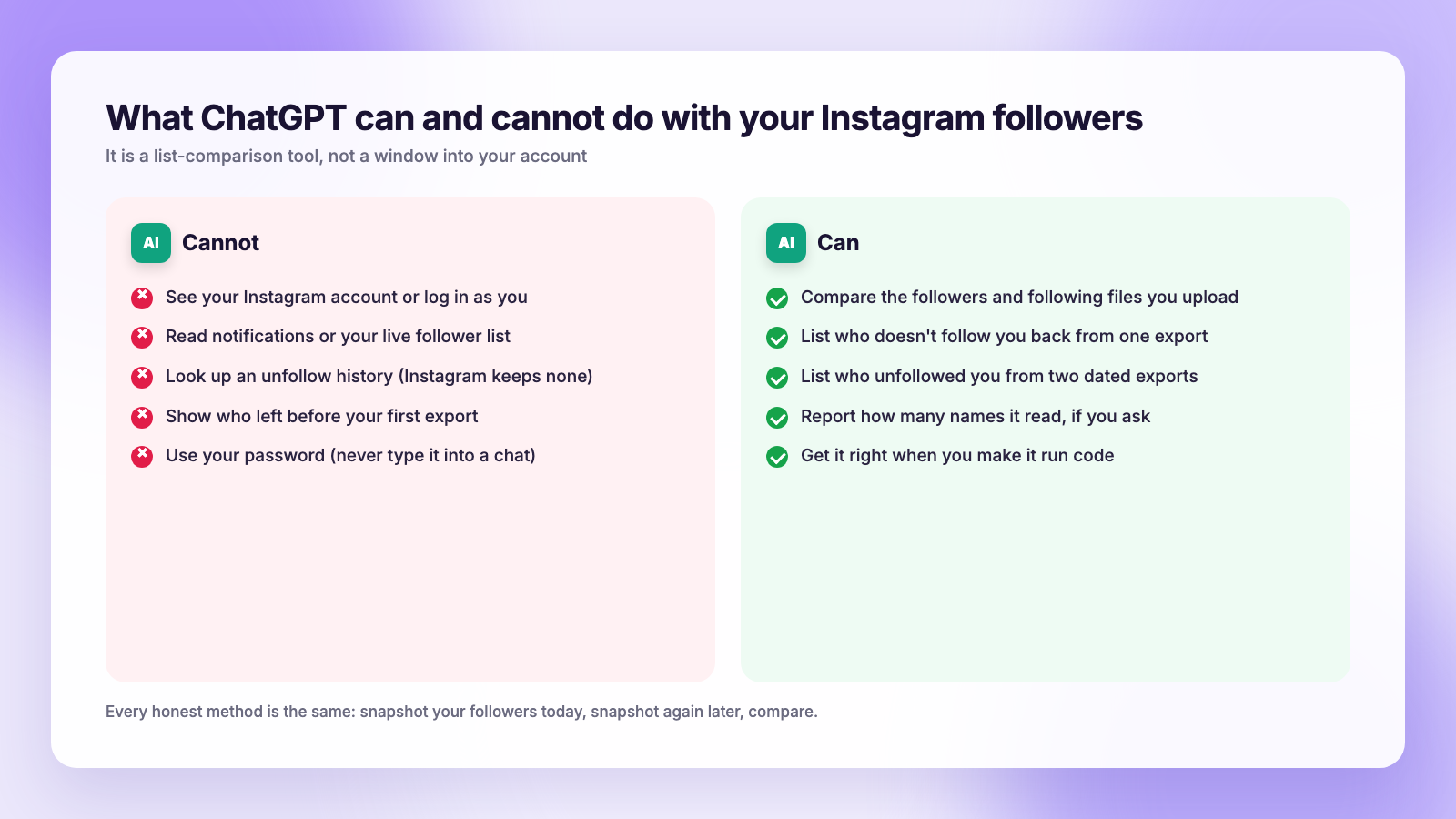
The short version for 2026: ChatGPT has no connection to Instagram and no unfollow history to look up. What it can do is compare two lists you upload: your followers file and your following file from Instagram's own data export. One export tells you who doesn't follow you back. Two exports from different dates tell you who actually unfollowed you. Make it run code rather than "read" the lists, check its counts, and never give it your password, because no method needs one.
Why ChatGPT can't just "look up" your unfollowers
ChatGPT only knows what you type or upload into the chat. It does not sign in to Instagram, it does not read your notifications, and it cannot browse your profile as you. If a prompt promises to "scan your account", it is making things up or it is a scam page dressed up as a prompt.
There is also nothing for it to find. Instagram notifies you about new followers but keeps no list of people who left, and your data download contains your current followers only, not past ones. That is why every honest method, including the export-based method we recommend for Instagram, works the same way: take a snapshot of your followers today, take another later, and compare.
ChatGPT is simply one way to do the comparison. A spreadsheet is another. A tracker that reads your export is a third.
Step 1: Export your followers and following from Instagram
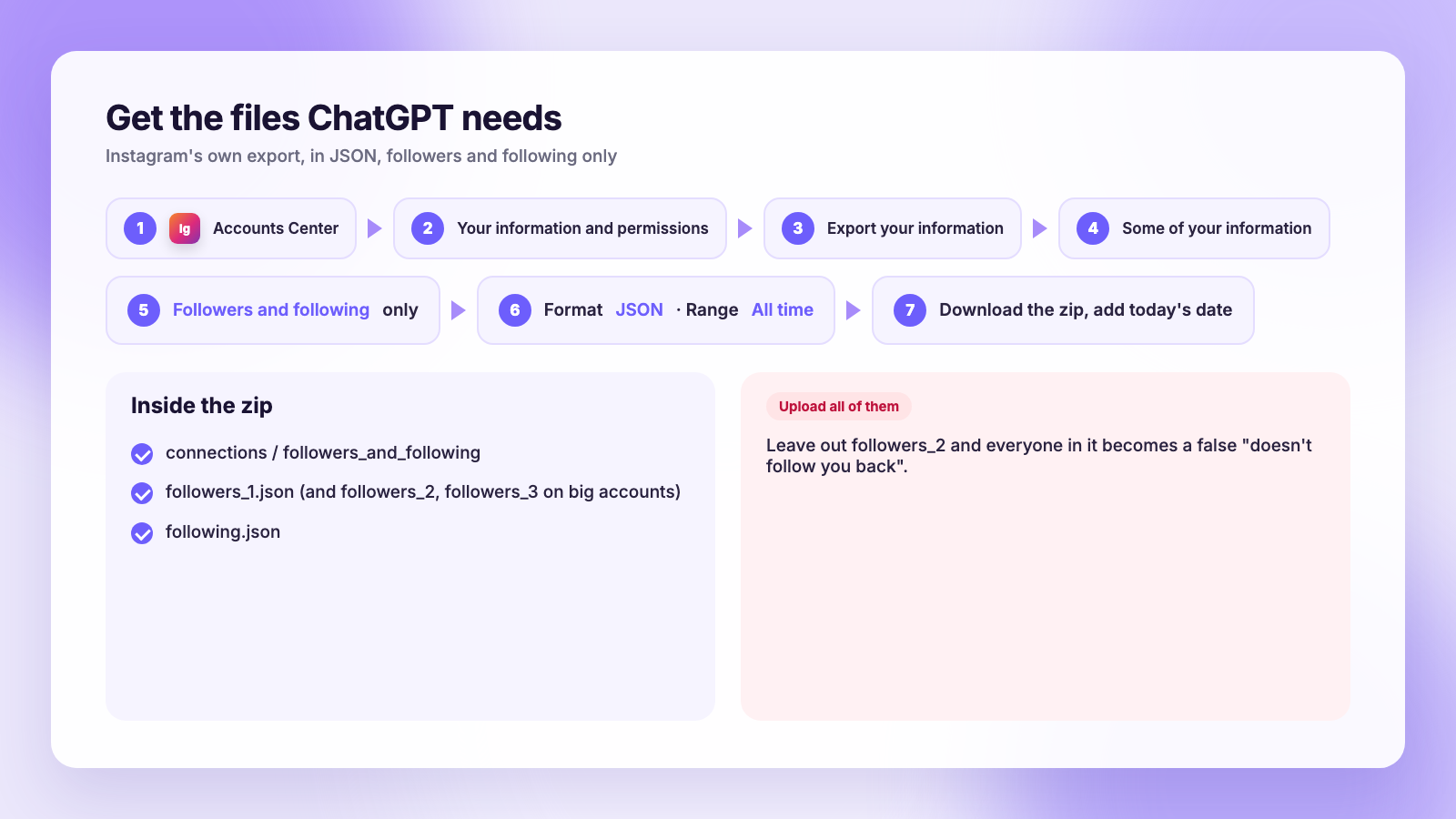
You need the official export, and you need it in JSON. Here is the path as of November 2026. Meta moves labels around, so if a word differs on your phone, the order still holds.
- In the Instagram app, open your profile, tap the menu (three lines), then Accounts Center. On newer versions it is called Meta Account.
- Tap Your information and permissions, then Export your information (older versions say Download your information).
- Choose Export to device, pick your Instagram profile, and choose Some of your information.
- Tick only Followers and following. A full export can take days; followers alone is usually ready within hours.
- Set the format to JSON, media quality to low (it does not matter here, but it keeps the file small), and the date range to All time.
- When Instagram emails you, download the .zip and rename it with today's date, for example
ig-followers-2026-11-03.zip.
Unzip it and look inside connections/followers_and_following. You will see a following file and one or more followers_N files. Accounts with a lot of followers get followers_1, followers_2 and so on. You need all of them, which is the first place the ChatGPT trick quietly goes wrong.
If the export stalls or the files look wrong, our guide to fixing a stuck Instagram data export covers the common causes.
Step 2: Who doesn't follow you back (one export)
This is the question ChatGPT answers best, because everything it needs is in a single download.
- Start a new chat in ChatGPT.
- Upload the
followingfile and everyfollowers_Nfile from the zip. - Paste this prompt:
These are my Instagram followers and following files. Using code, list every username in the following file that is not in any of the followers files. Tell me how many followers and how many following you read, and how many usernames are on the final list.
The phrase "using code" is the whole trick. When ChatGPT actually runs a comparison, the names and counts come from your files. When it only reads the lists as text, it can skip names or invent plausible-looking ones, and it gets worse the longer the list is. If the answer comes back without a count of followers and following read, ask again and insist on code.
Compare the counts it reports with the numbers on your profile. They will not match exactly, because the export leaves out some pending and deactivated accounts, but they should be close. If ChatGPT says it read 412 followers and your profile says 2,100, it missed a followers_2 file.
The same check, done without a prompt, is what our who doesn't follow you back on Instagram guide walks through.
Step 3: Who unfollowed you (two exports)
One download is a snapshot of today. It cannot tell you who left last week, however cleverly you phrase the question. For a real unfollower list you need two followers files from different dates.
- Keep the export you made today. The date in the filename matters now.
- In two or three weeks, or the day you notice a drop, request a new export the same way.
- Upload the followers files from both zips and say which one is older.
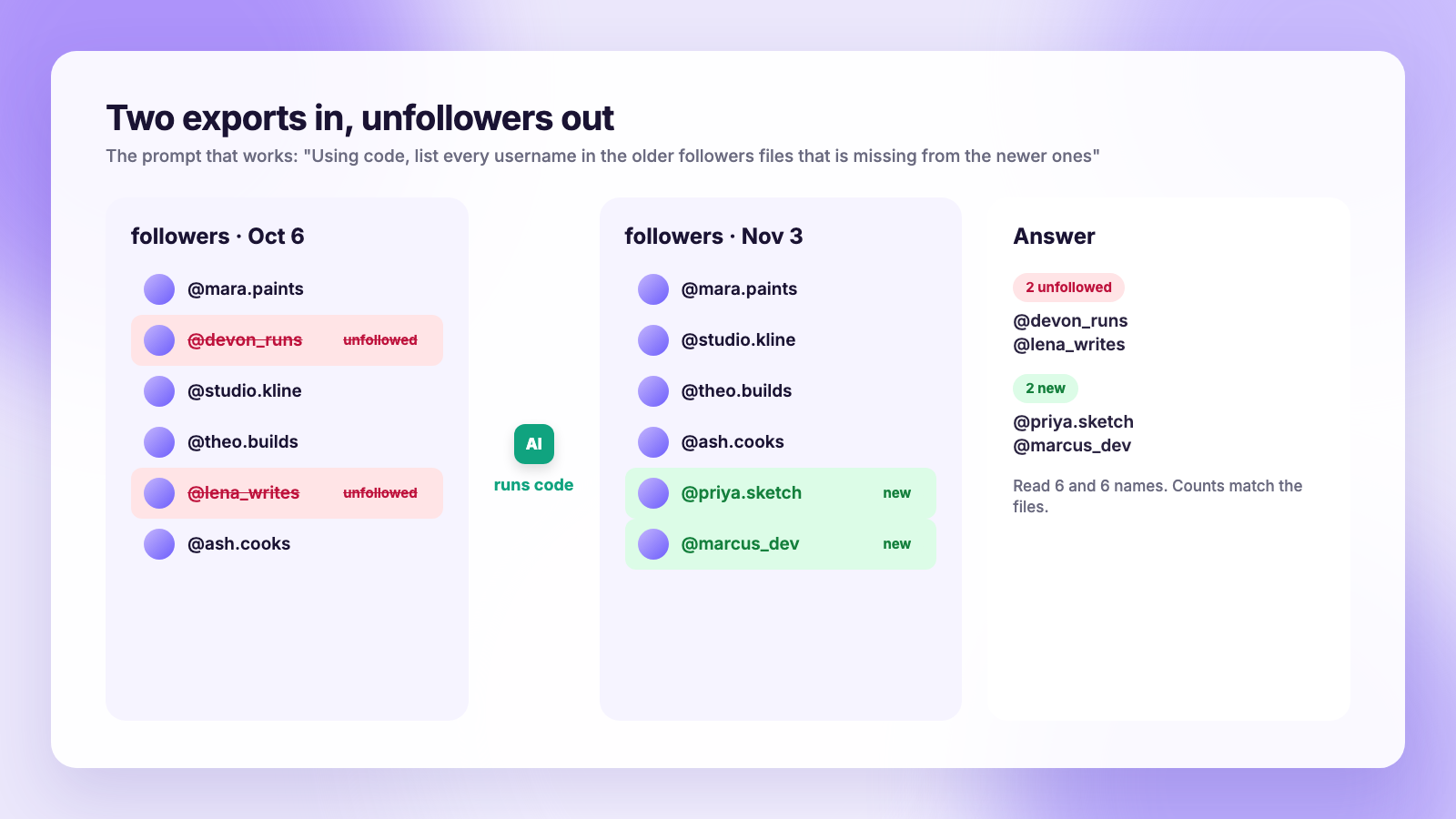
- Prompt: "Using code, list every username that is in the older followers files but not in the newer ones. Then list usernames only in the newer files. Report how many names you read from each set."
The first list is your unfollowers. The second is your new followers. As with method 1, make it use code and make it report counts.
One caveat that applies to every method, not just this one: a name that disappears between exports is not always an unfollow. The account may have been deactivated, deleted, or suspended, or the person may have blocked you. If you want to know which, our guide to blocked versus deactivated accounts explains how to tell them apart.
Where ChatGPT gets it wrong
The method is sound. The failure modes are specific and worth knowing before you act on a list.
- It reads instead of computes. Without "using code", ChatGPT may answer from memory of the text it skimmed. On a list of 50 names it is usually right. On 2,000 it will drop and invent names.
- It misses extra follower files. Upload
followers_1only and every name infollowers_2becomes a "doesn't follow you back" false positive. - It confuses the recently unfollowed file. The export may include a file with "recently unfollowed" in the name. Those are accounts you unfollowed, not people who left you. If ChatGPT uses it as your unfollower list, the answer is backwards.
- It mixes HTML and JSON exports. If one export is HTML and the other JSON, the usernames are wrapped differently and the comparison breaks. Pick JSON both times.
- It cannot go back in time. No prompt turns a single export into history. Your first export is day zero.
- It is not private by default. Your follower list is personal data. Check your ChatGPT data settings before uploading, and delete the chat afterwards if you prefer.
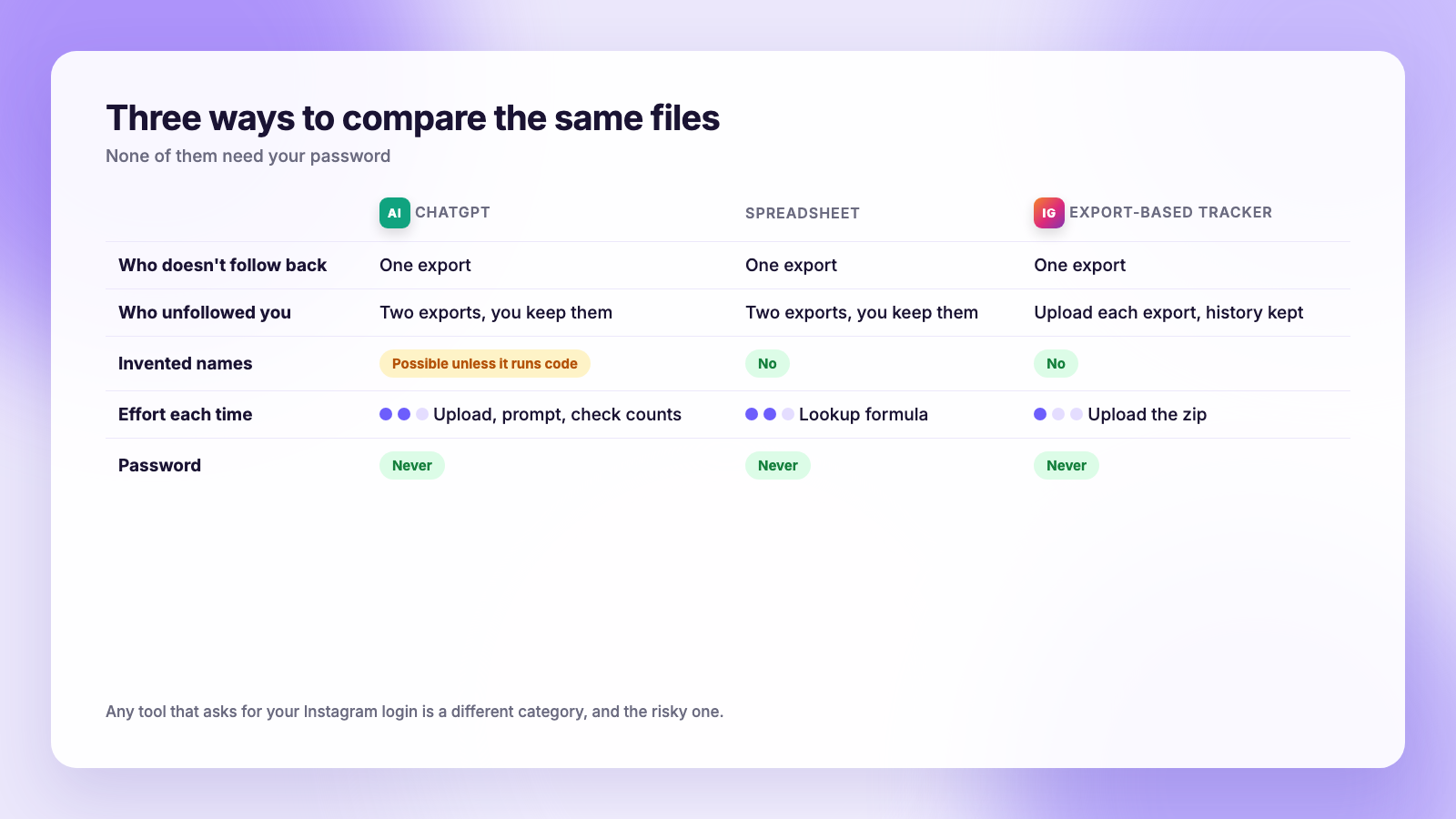
| ChatGPT | Spreadsheet | Export-based tracker | |
|---|---|---|---|
| Needs your password | No | No | No |
| Who doesn't follow back | One export | One export | One export |
| Who unfollowed you | Two exports, you keep the files | Two exports, you keep the files | Upload each export, history kept for you |
| Risk of invented names | Yes, unless it runs code | No | No |
| Effort each time | Re-upload, re-prompt, re-check counts | Lookup formula | Upload the zip |
The no-prompt alternative
If you plan to check more than once, the prompt-and-verify loop gets old quickly. An export-based tracker does the same comparison without the babysitting: you upload the zip Instagram gave you, it stores the snapshot with its date, and the next upload shows who left, who joined, and who never followed back.
That is how Plumefy's unfollower tracker works. It reads the Instagram and TikTok data exports only, never asks for a password, and never logs in as you. It also keeps every snapshot, so three months from now you can see which week a batch of people left rather than hunting through dated zip files.
The difference from a login-based app is the same one that matters with ChatGPT: nothing touches your account. Our guide on whether Instagram unfollower apps are safe explains why that line is the one that gets accounts locked.
What to do with the list
A list of names is only useful if you do something sensible with it. Three habits that hold up:
- Do not retaliate in bulk. Unfollowing 300 people in an afternoon is exactly what trips Instagram's action blocks. Our post on the Instagram unfollow limit per day explains the ranges people measure and why slow is safer.
- Look for patterns, not people. If a batch left the week you posted something off-topic, that is information. One cousin leaving is not.
- Keep posting on a schedule. Steady output is the thing that reliably replaces lost followers. If you schedule with a tool, compare how Buffer and Publer handle Instagram against Plumefy before you pick one, since per-channel pricing adds up once you add TikTok and Threads.
FAQ
Can ChatGPT see who unfollowed me on Instagram?
No. ChatGPT is not connected to Instagram and Instagram keeps no unfollow history. It can only compare follower lists you upload from your own data export, and it needs two exports from different dates to show unfollowers.
Do I need ChatGPT Plus for this?
No. The free version can read uploaded files and run code for small jobs. Very large follower files may hit limits on free accounts, in which case split the job or use a spreadsheet or tracker instead.
Is it safe to upload my follower list to ChatGPT?
It contains usernames only, not passwords, but it is still your data. Review your ChatGPT data controls first, and never type your Instagram password into any chat. No legitimate method needs it.
Why does ChatGPT give me different answers each time?
Because it answered from reading rather than computing. Insist on "using code" in the prompt and ask for the counts of names read from each file. If the counts match your files, the list is trustworthy.
The bottom line
ChatGPT is a reasonable list-comparison tool and a terrible Instagram oracle. Export your data in JSON, upload every followers file, make it run code, and keep a dated export so the next comparison shows real unfollowers. If you would rather skip the prompts, upload the same zip to an export-based tracker and let it keep the history for you.
Post everywhere, once.
Start on the free plan — no card needed, upgrade when you need scheduling.
Start free