How to Schedule Bluesky Posts in 2026 (No Native Scheduler Yet)
Schedule Bluesky posts in 2026: why there is no schedule button, how app passwords work, the 300-character and 4-image limits, free schedulers, what to check first.
Open the Bluesky composer on your phone or on the web and look for a clock. There isn't one. You get Post, Drafts, the media buttons, a language picker and the reply settings, and that is the whole menu. Two and a half years after people first asked for it, Bluesky still has no way to write a post now and have it go out later.
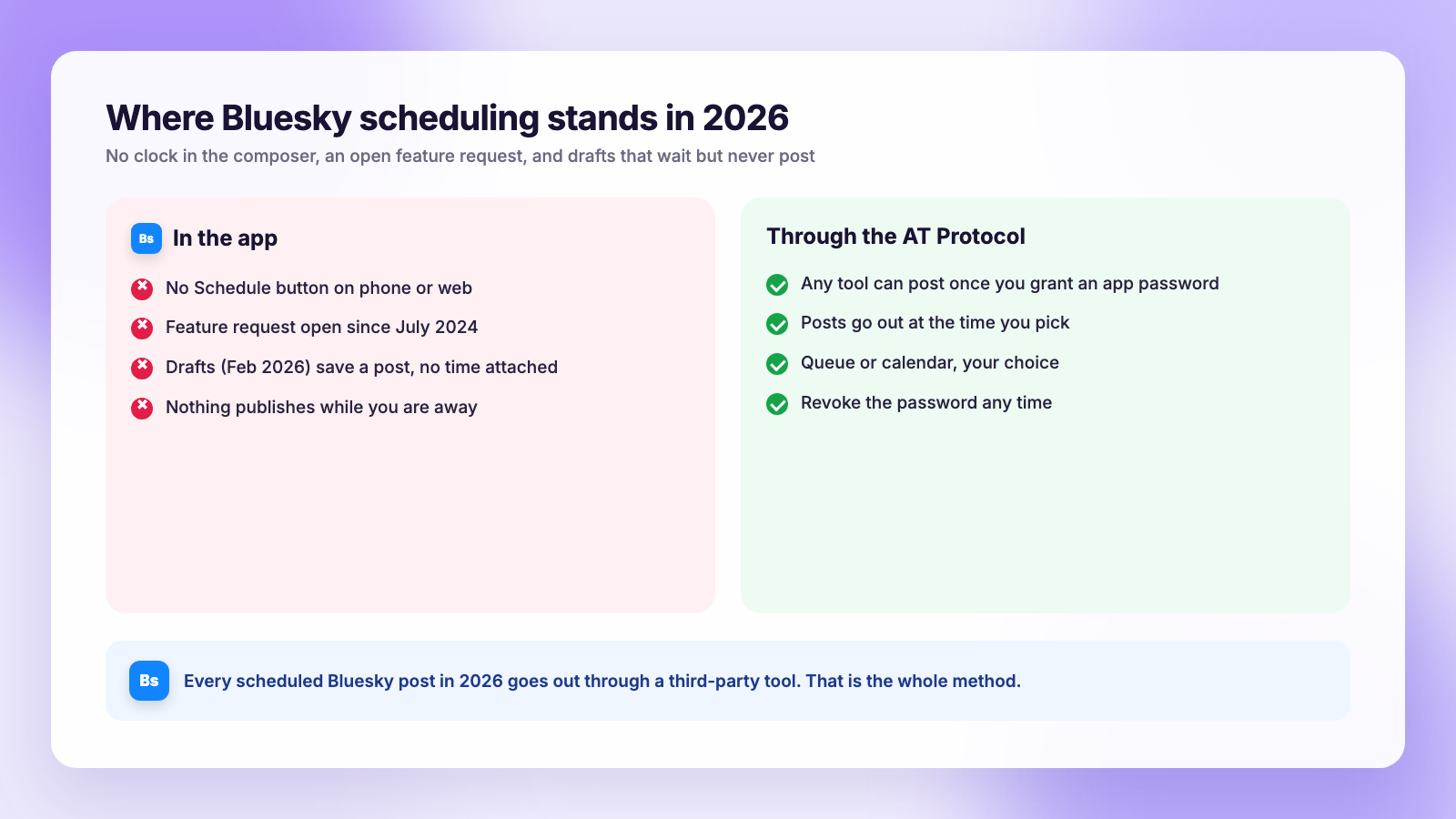
The short version for 2026: Bluesky has no native scheduler. The feature request has sat open on Bluesky's public GitHub tracker since July 2024, and the drafts feature that arrived in February 2026 saves a post but does not publish it for you. Scheduling works through a third-party tool: you create an app password in Bluesky's settings, connect the tool with it, and it posts at the time you choose. Several schedulers do this on a free plan. This guide covers the setup, Bluesky's limits, what to check after your first scheduled post, and which parts of Bluesky you should keep doing by hand.
Why there is no schedule button (yet)
Bluesky's app is open source, so you can watch the request for scheduled posts age in public. It is issue 4810 on the social-app repository, titled "Scheduled Posts", filed in July 2024 and tagged as a feature request. People add a comment every few weeks. Nobody from Bluesky has committed to a date.
What Bluesky did ship, on February 9, 2026 in version 1.116, is drafts. Bluesky pitched them at "the overthinkers and perfectionists", and that is what they are for: a post you want to come back to. A draft stores the text, images, video, link card and reply settings, and waits. It does not have a time attached and nothing publishes it. If you have been saving drafts hoping to find a schedule option inside them, that is why you have not.
The reason scheduling is so easy to get from outside is the same reason Bluesky is interesting for creators in the first place. It runs on the AT Protocol, which any app can post through once you give it permission. That permission is an app password.
Step 1: Create an app password
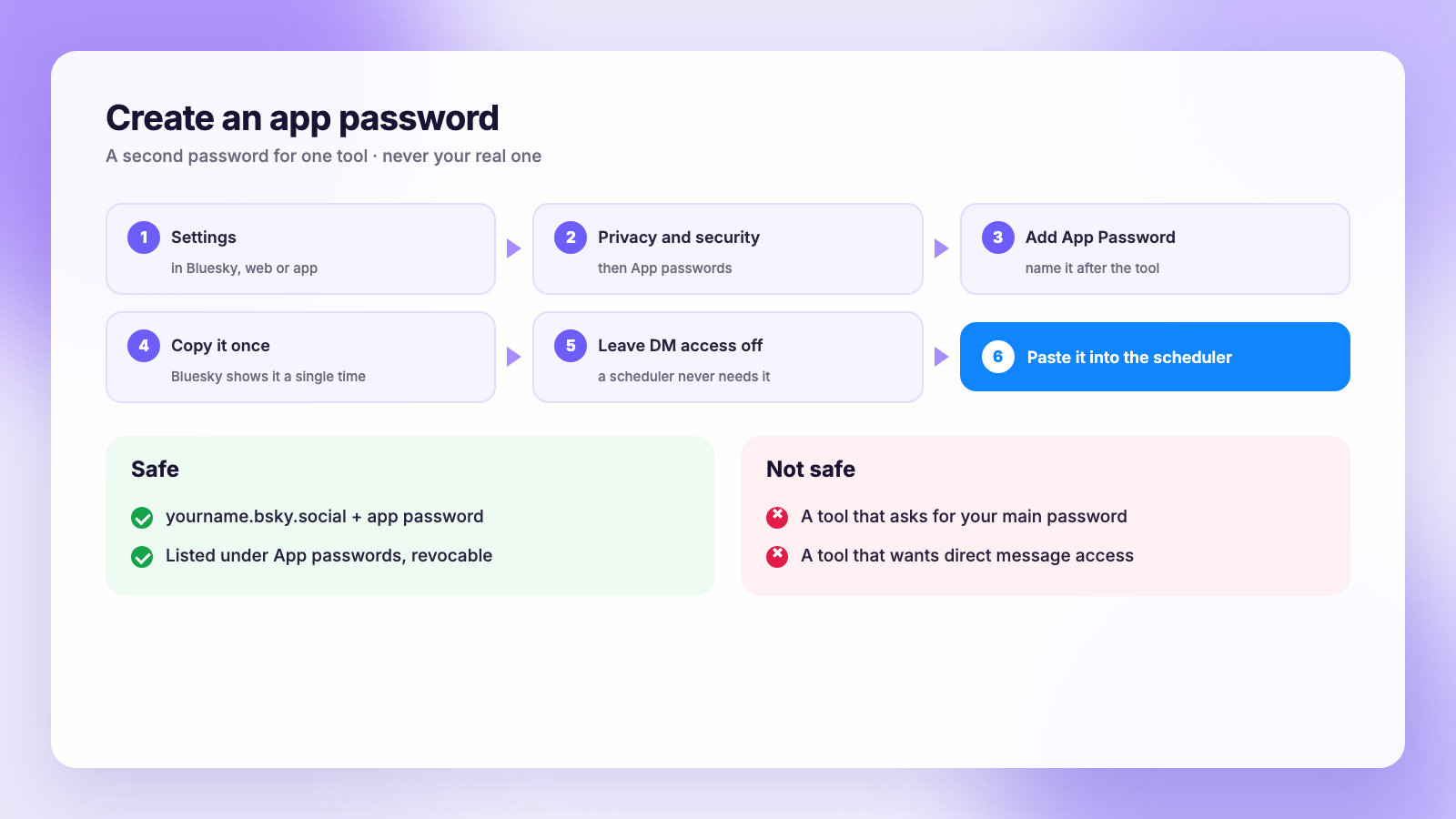
An app password is a second password for your account that you hand to a tool instead of your real one. You can make as many as you like, name each one, and delete any of them without affecting your login.
- Open Bluesky on the web or in the app and go to Settings.
- Tap Privacy and security, then App passwords.
- Tap Add App Password, give it a name you will recognize later, for example
plumefyorbuffer, and confirm. - Copy the password that appears. Bluesky shows it once. If you lose it, delete it and make another.
- Leave Allow access to your direct messages off. A scheduler has no reason to read your DMs.
Never type your main Bluesky password into any scheduling tool. If a tool asks for it, pick another tool.
Step 2: Connect Bluesky to a scheduler
Every scheduler that supports Bluesky connects the same way, so the steps barely differ between tools:
- In the scheduler, choose add account or connect channel and pick Bluesky from the list.
- Enter your full handle, including the domain:
yourname.bsky.social, or your own domain if you use one as your handle. - Paste the app password. Not your account password.
- Confirm. The tool fetches your profile, and Bluesky lists the connection under App passwords, where you can revoke it any time.
If you want to see which tools do this well before committing, our Buffer comparison and Publer comparison cover the Bluesky support, free plans and limits of each. Buffer's free plan connects up to 3 channels with 10 scheduled posts per channel at a time, and Bluesky itself has pointed people to it. Publer's free plan covers up to 3 social accounts with 10 scheduled posts each; threads and follow-up comments sit on its paid plans. Plumefy connects Bluesky on the free plan alongside Threads, Instagram, TikTok, Facebook, X, LinkedIn and Pinterest, and the composer checks your caption against Bluesky's limit as you type.
Step 3: Write the post within Bluesky's limits
Bluesky is strict about size, and a scheduler cannot bend the rules, so write to them from the start.
| Limit | Bluesky | What it means for a scheduled post |
|---|---|---|
| Characters | 300, links included | Links count at full length; no shortening |
| Images | Up to 4 per post | Alt text on each, up to 2,000 characters |
| Video | Up to 3 minutes, one per post | Vertical or square both work |
| Link card | One, generated from the first link | Check it rendered after the first post |
| Hashtags | Count toward the 300 | Two or three at most |
| Threads | Posts chained as replies | Supported by some tools, not all |
The 300-character cap is the one that catches people coming from Threads, where the limit is 500, or from X with its longer paid limit. The fix is to write the Bluesky version first and expand it for the other platforms, not the other way round. Our character limits guide has every platform's number in one place, and Threads vs Bluesky for creators goes into how the two feeds reward different writing.
Alt text is not optional culture on Bluesky. The community expects it, the app prompts for it, and a scheduler that offers an alt text field for each image is worth choosing over one that does not.
Step 4: Queue or calendar?
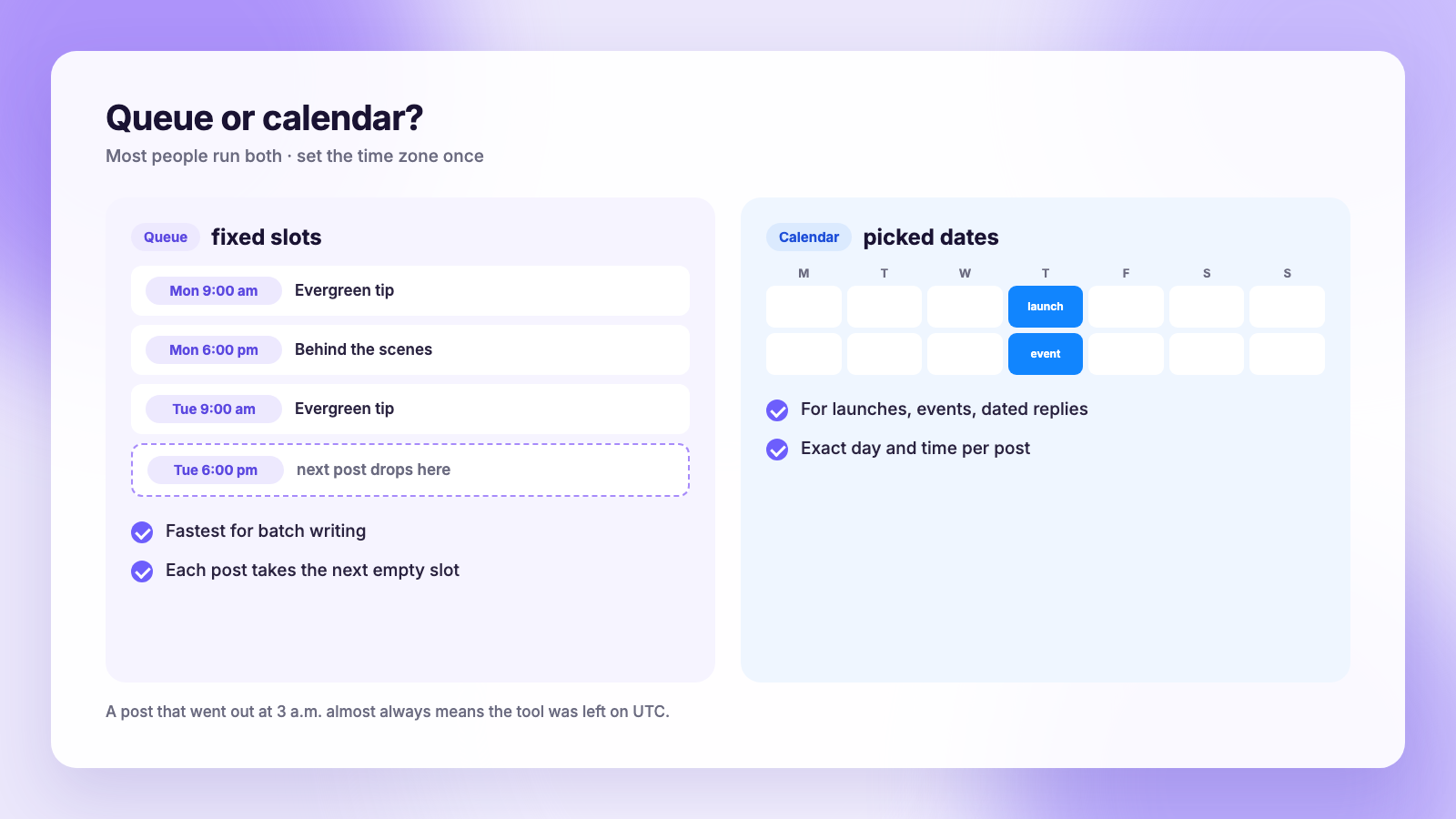
Schedulers offer two ways to time a post. A queue is a set of fixed slots, say 9 a.m. and 6 p.m. on weekdays, and each new post drops into the next empty one. A calendar is a date and time you pick per post. The queue is faster when you write in batches and do not care which day a particular post lands on. The calendar is what you want for anything tied to a date: a launch, an event, a reply to a news cycle you can see coming.
Most people run both. Evergreen posts go in the queue; dated posts go on the calendar. Check the time zone setting once when you set up the tool. The classic Bluesky scheduling complaint, a post going out at 3 a.m., is almost always a tool set to UTC.
Step 5: Check the first scheduled post
Scheduling through an app password is reliable, but the first post from any tool deserves a look, because the things that go wrong are visible only in the Bluesky app:
- Open the post in Bluesky. Confirm it is there, on time, with the right text.
- Tap the link. The link card should show the page title and image. If it posted as bare text with no card, the tool did not generate the card embed; check its settings or the link format.
- Tap each hashtag. It should open the tag feed. Some tools post hashtags as plain text that is not clickable.
- Check the images and alt text. Long-press or open the image to see that the alt text came through.
- Check reply settings if you limited who can reply. Not every tool passes those through.
Do this once per tool. After that, trust it and spend the time elsewhere.
What to keep doing by hand
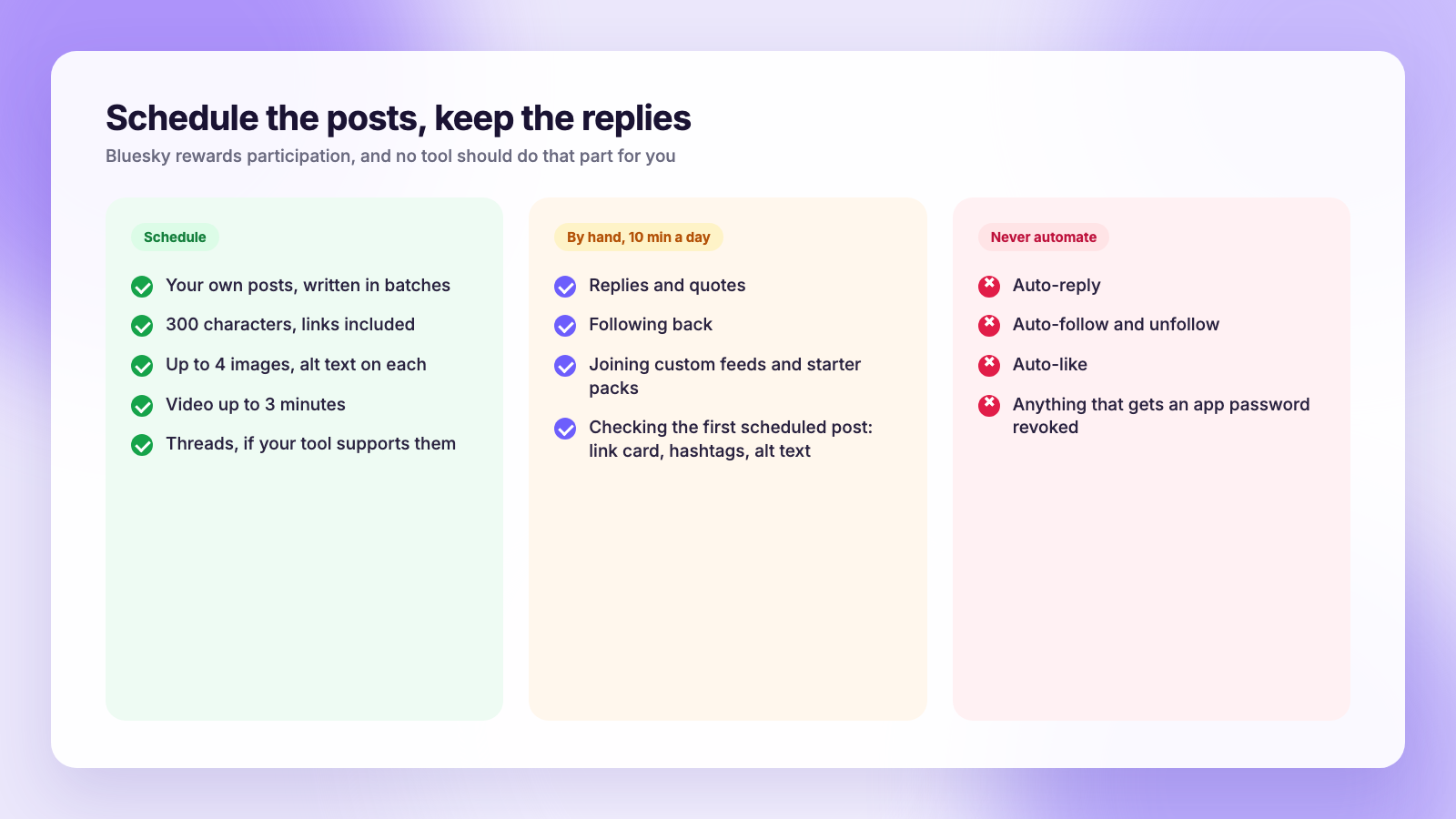
Bluesky rewards participation more than broadcasting. Its feeds, custom feeds especially, surface posts that get replies and quotes, and the people who grow there are in the replies of other accounts as much as in their own timeline. A scheduler cannot do that part for you, and the tools that offer to auto-reply or auto-follow are the ones to avoid, both because they feel like spam to the people on the receiving end and because they are the kind of automation that gets an app password revoked.
So the split that works is: write and schedule your own posts in batches, then spend ten minutes a day in the app replying, quoting and following back. If you want to know how that plays out over time, how to see who unfollowed you on Bluesky explains the public follower data, and the Bluesky for creators guide covers custom feeds, starter packs and domain handles.
Scheduling Bluesky alongside Threads and X
Most people on Bluesky are also on Threads, and many kept an X account. The same short post belongs on all three, and this is where a multi-platform scheduler pays off: one draft, trimmed to 300 for Bluesky, expanded to 500 for Threads, each with its own time. In Plumefy that is one post with a tab per platform; the Bluesky tab counts your characters against the 300 limit as you type. Threads has its own native scheduler too, which we cover in how to schedule Threads posts, but it only posts to Threads, which brings you back to a tool for the rest.
FAQ
Can you schedule posts on Bluesky without a third-party app?
No. As of November 2026 the Bluesky app has no scheduling feature. Drafts save a post but do not publish it. Every scheduled Bluesky post goes out through a tool connected with an app password.
Is it safe to give a scheduler my Bluesky app password?
Yes, that is what app passwords are for. They are separate from your real password, can be named per tool, and can be revoked from Settings → Privacy and security → App passwords at any time. Keep direct message access turned off and never share your main password.
Is there a free Bluesky scheduler?
Yes. Buffer's free plan connects 3 channels with 10 scheduled posts each, Publer's free plan covers 3 accounts, and Plumefy connects Bluesky on its free plan, with scheduling on the Creator plan. Bluesky-only tools also exist, some of them free.
Can I schedule a Bluesky thread?
Through some tools. A Bluesky thread is a chain of replies to your own post, and tools that support it let you write the parts in one place. Buffer supports threads on Bluesky; check the feature list before you rely on it.
Set it up once, then go be in the replies
Make the app password, connect it, write to 300 characters with alt text on every image, check the first post, and let the queue run. The time that frees up belongs in the replies, which is where Bluesky actually grows. Plumefy connects Bluesky alongside five other accounts on the free plan, and the Creator plan schedules the whole set from one composer.
Post everywhere, once.
Start on the free plan — no card needed, upgrade when you need scheduling.
Start free