How to Cross-Post Instagram Reels to YouTube Shorts
Turn your Instagram Reels into YouTube Shorts without watermark penalties. What to change, what to keep, and a simple workflow to post both in minutes.
You already made the Reel. You planned it, filmed it, edited it, and posted it. So why should that video live on one app and one app only? YouTube Shorts wants vertical video too, and there is a whole audience over there that may never see your Instagram.
The good news: reusing Reels as Shorts is one of the easiest wins in social media. The catch: if you do it the lazy way, both platforms will quietly punish you. Let me show you the right way. It only takes a few extra minutes per video.
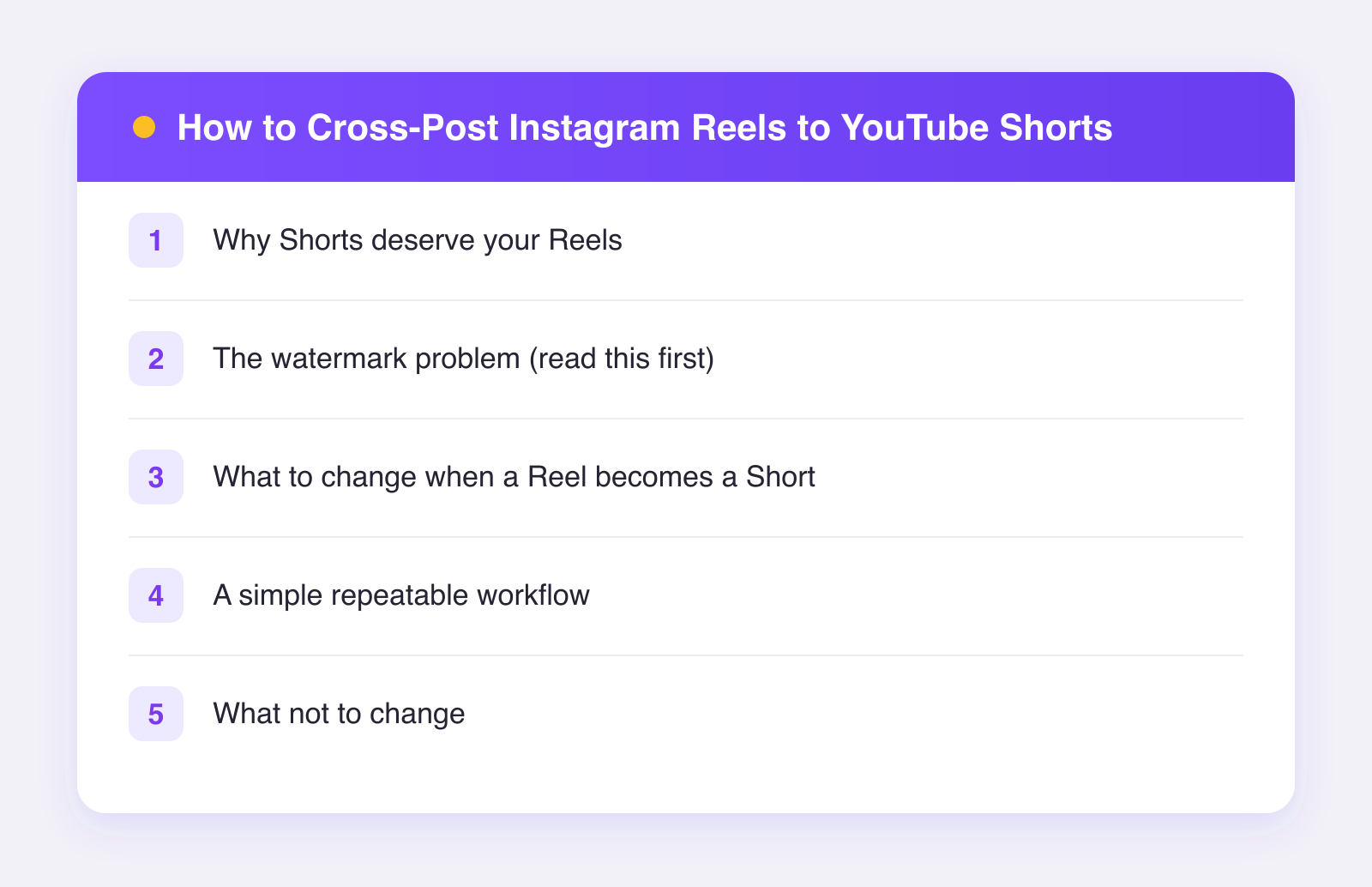
Why Shorts deserve your Reels
YouTube is a search engine as much as a social app. People type questions into it every day. A Short can keep picking up views for weeks or months, long after a Reel has gone quiet. Shorts can also funnel viewers to your longer YouTube videos if you make those.
So the same 30 seconds of work gets you:
- A second audience that may never open Instagram
- Longer shelf life, because YouTube surfaces older videos in search
- A bridge to long-form content if you ever want one
That is a lot of upside for a video you already finished.
The watermark problem (read this first)
Here is the mistake almost everyone makes. They download their Reel from Instagram, which stamps an Instagram watermark and their username onto the video. Then they upload that stamped file to YouTube.
Platforms do not like each other's logos. As of 2026, short-video platforms have said in various ways that they deprioritize videos with visible watermarks from competing apps. Even if the penalty were zero, a watermark bouncing around the screen looks sloppy to viewers.
The fix is simple: always keep your clean, original file. Export it from your editing app before you upload anywhere. Save it to a folder you can find. That clean file is your master copy, and it is what you upload to every platform.
If you lost the original, some editing apps can crop or cover a watermark, but it never looks as good. Build the habit of saving your exports instead.
What to change when a Reel becomes a Short
A straight copy-paste works, but a small tailoring pass works better. Here is what actually matters.
1. Give it a real title
Instagram leans on the caption. YouTube leans on the title. Your Short's title shows up in search and in the feed, so treat it like a tiny headline. Say what the video is about in plain words someone might type into search. "3 ways to light a video at home" beats "POV: me again lol."
2. Rewrite the caption, lightly
Reels captions often carry hashtags, emoji, and an engagement question. On YouTube, the description matters less for viewers but still helps search. Keep one or two clear sentences that repeat your main keyword naturally. Drop the Instagram-specific stuff like "link in bio." YouTube lets you put an actual link in the description.
3. Check the first frame
YouTube may show a frame of your Short as its thumbnail in some places. If your video opens on a blurry transition or your eyes half closed, that is what people see. Videos that open on a clear, readable moment do better everywhere, so this fix helps your Reel too.
4. Mind the music
Trending audio from Instagram's library does not travel. If your Reel uses in-app audio, the downloaded file may be muted or you may not have rights to reuse the track. Videos with your own voice, original sound, or properly licensed music cross-post cleanly. This is one more reason talking videos travel better than lip-sync trends.
5. Watch the safe zones
Each app lays its buttons and captions in slightly different places. Text sitting at the very bottom of a Reel can hide behind the Shorts interface. Keep your on-screen text near the middle of the frame and it will survive on both. We cover this more in our guide to tailoring posts per platform.
A simple repeatable workflow
Here is the whole process, start to finish:
- Edit your video and export a clean file with no watermarks.
- Write your Instagram caption and your YouTube title as two separate things.
- Upload the clean file to both platforms, or queue it once in a scheduler.
- Post at a time that suits each audience.
- Check back in a week and note which platform liked it more.
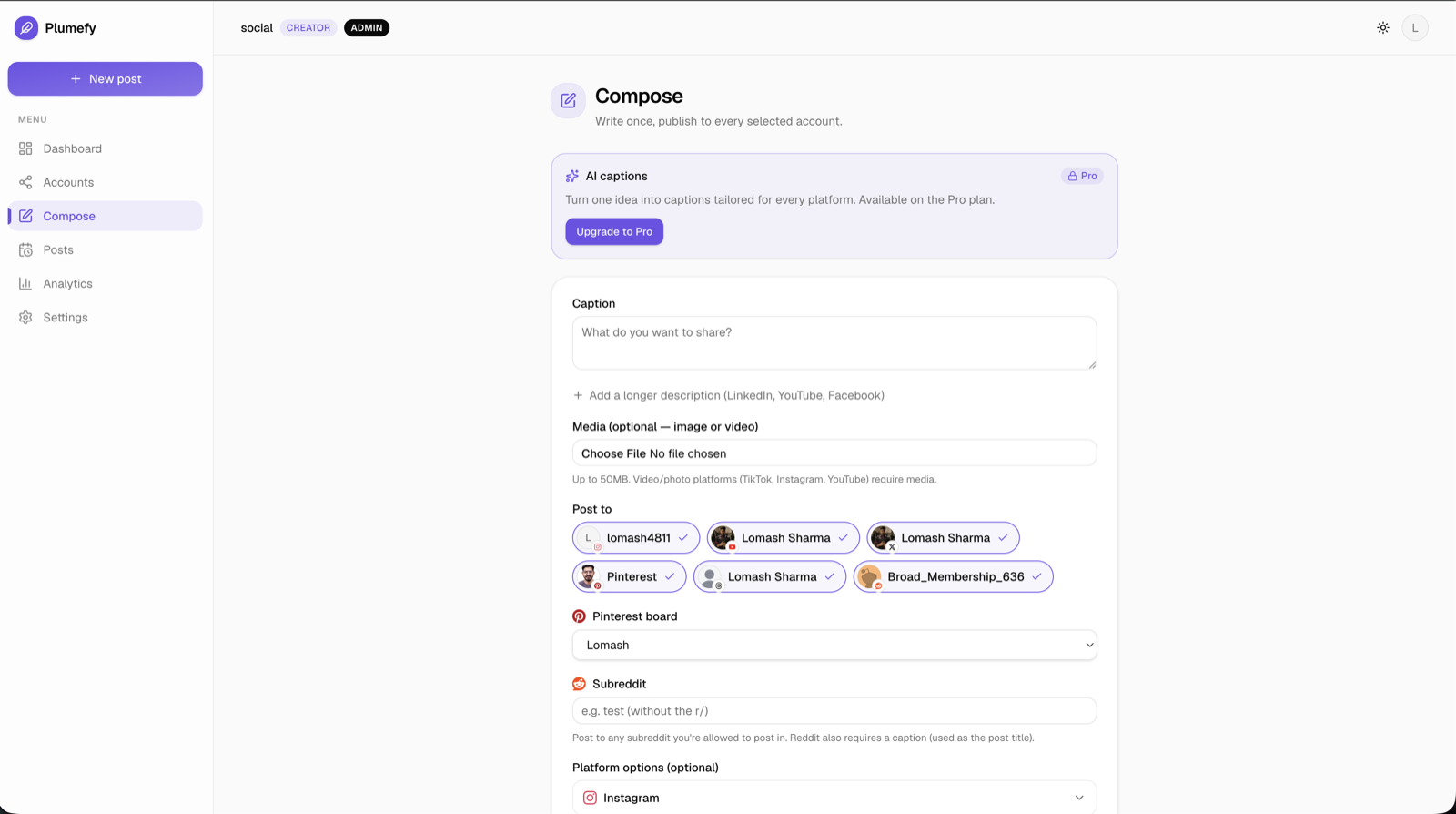
If step 3 sounds tedious, this is exactly what Plumefy was built for. You upload the clean video once, write a caption, tweak the YouTube title in the same screen, and schedule both posts together. Plumefy cross-posts to 11 networks, so the same flow covers TikTok, Facebook, and anywhere else you post vertical video. On the Pro plan, AI captions can even draft a platform-tuned version for each network so you are editing instead of writing from scratch.
What not to change
Do not re-edit the video itself for each platform. The content is the content. Your hook, pacing, and story work the same on both apps, and re-editing eats the time savings that make cross-posting worth it. Tailor the packaging, keep the product. For more on stretching one piece of content further, see how to repurpose content across platforms.
FAQ
Will YouTube punish me for posting the same video that is on Instagram?
No. Platforms do not penalize you for posting your own content in multiple places. The problem is only visible watermarks from another app. Upload the clean file and you are fine.
Should I post the Reel and the Short at the same time?
It does not matter much. Some creators stagger them by a day to spread activity out. If you use a scheduler like Plumefy you can set each platform's time in one sitting and stop thinking about it.
Do hashtags work on Shorts?
YouTube supports hashtags, but search-friendly titles and descriptions matter more there. Two or three relevant hashtags are plenty. Do not paste your full Instagram hashtag block into YouTube.
My Reel is 90 seconds. Is that too long for Shorts?
Length rules keep shifting, and as of 2026 Shorts accepts videos up to roughly three minutes. A 90-second vertical video should upload as a Short without trouble, but shorter and punchier usually performs better on both apps.
One video, two audiences, a few extra minutes of work. That is the whole trick. If you want the upload step to take one sitting instead of two, try Plumefy free and post to both from a single screen.
Post everywhere, once.
Start on the free plan — no card needed, upgrade when you need scheduling.
Start free