How to Schedule YouTube Shorts (Step by Step)
Learn how to schedule YouTube Shorts step by step: the upload flow, titles and hashtags that help, a cadence you can keep, and cross-posting from TikTok.
YouTube Shorts might be the most underrated place to post short video right now. Shorts sit inside YouTube, which means they can feed the biggest long-term asset a creator can own: a YouTube channel with subscribers and search traffic.
But Shorts only work if you post them consistently, and consistency is where most people quit. The fix is the same as everywhere else: batch your videos, schedule them, and let the queue do the showing up.
This guide covers the exact upload flow, what to put in titles and hashtags, a realistic cadence, and how to reuse your TikTok videos without hurting yourself.
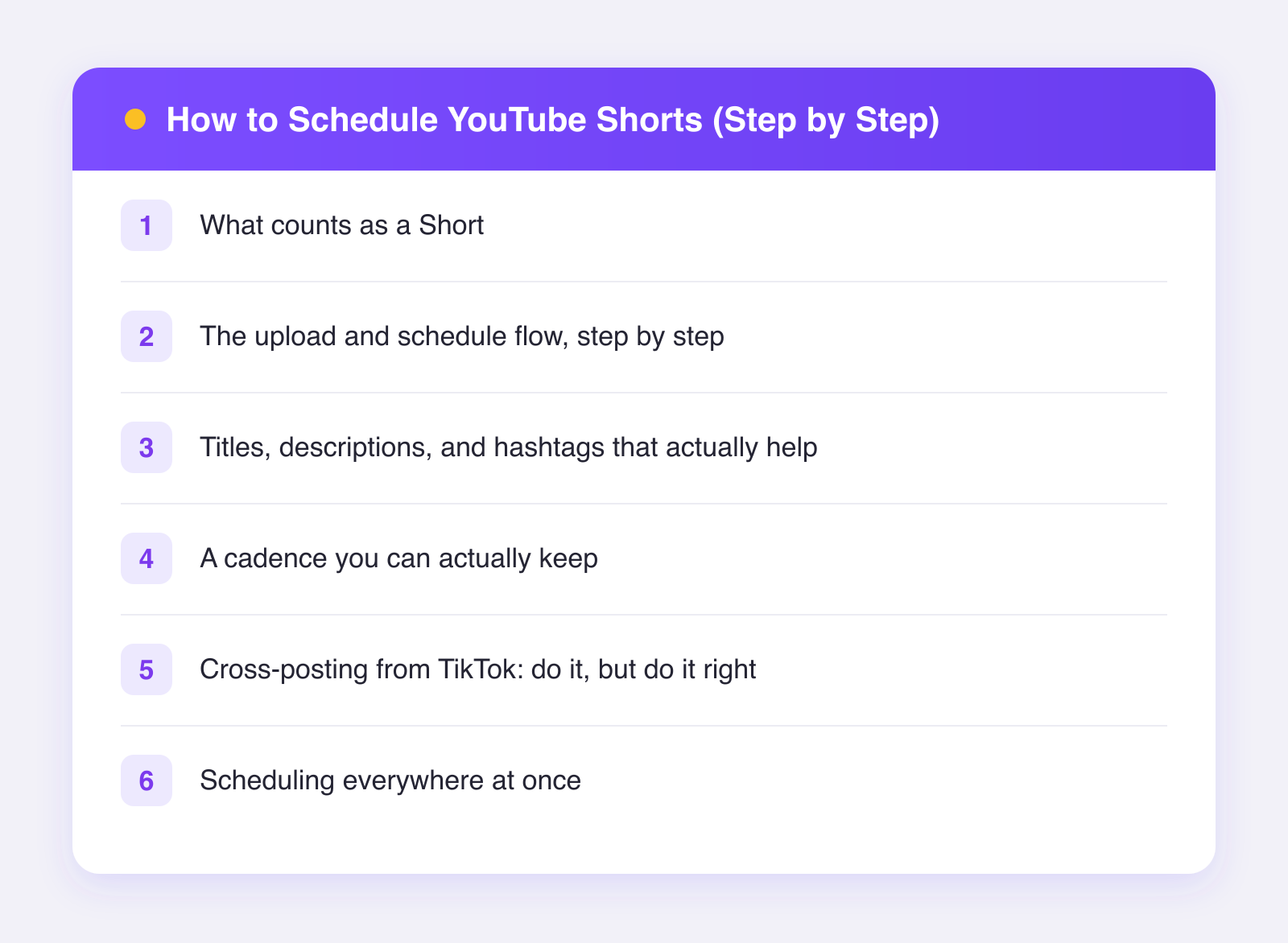
What counts as a Short
Quick basics so nothing surprises you. A Short is a vertical video, and as of 2026 the length limit is roughly three minutes, though the sweet spot for most creators is well under sixty seconds. Upload a vertical video within the limit and YouTube treats it as a Short automatically. No special button, no secret setting.
The upload and schedule flow, step by step
You can schedule Shorts natively, and the desktop flow is the comfortable way to do it:
- Go to YouTube Studio in your browser and click Create, then Upload videos.
- Drop in your vertical video file.
- Write your title and description (more on these below).
- Set a thumbnail if offered; for Shorts the first frame usually does the job, so make your first frame count.
- Choose your audience settings, then click through to Visibility.
- Pick Schedule, choose a date and time, and confirm.
Done. The Short publishes itself at the time you picked. On mobile, the YouTube app also lets you schedule from the upload flow, but batching ten videos on a phone is miserable. Do your batching on desktop.
Titles, descriptions, and hashtags that actually help
Shorts discovery is mostly the feed, but YouTube is still a search engine underneath, so words matter more here than on TikTok:
- Title: one clear line that says what the video delivers. "3 knife skills every beginner cook needs" beats "You NEED to see this." Titles show under the video and in search.
- Description: a sentence or two is plenty. Mention the topic naturally; this is context for search, not an essay.
- Hashtags: keep it to two or three relevant ones. The dedicated #shorts tag is optional as of 2026; vertical format is what marks a video as a Short, not the tag. Tags like #homecooking help topical placement roughly, so use ones that describe the content.
The honest summary: spend your effort on the first two seconds of the video and a clear title. Everything else is a rounding error.
A cadence you can actually keep
Shorts reward volume more than long-form does, but only volume you can sustain:
- Start at 3 per week. Enough to learn what works, light enough to keep for months.
- Batch on one day. Film or edit several in a single session. Our guide to batching social content walks through the workflow; short video benefits from it more than any other format.
- Schedule the week in one sitting. Ten minutes in YouTube Studio or your scheduler and the week is handled.
- Review monthly. Double down on the formats that held viewers past the first few seconds.
Daily posting is great if you can do it without burning out. Most people cannot, and a broken streak often kills the whole habit. Three good Shorts a week, forever, wins.
Cross-posting from TikTok: do it, but do it right
If you already make TikToks, you are sitting on a free Shorts channel. The same video can live in both places. Two rules:
- Never upload a video with the TikTok watermark. Platforms are widely believed to downrank watermarked reuploads, and it looks lazy either way. Export a clean copy from your editing app, or save your original file before posting anywhere.
- Rewrite the text for YouTube. TikTok captions full of trending tags look out of place on Shorts. Give the Short a real title and a couple of relevant tags instead.
If TikTok is your main engine, our guide on how to go viral on TikTok covers making the source videos stronger; every improvement there compounds across every platform you cross-post to.
Scheduling everywhere at once
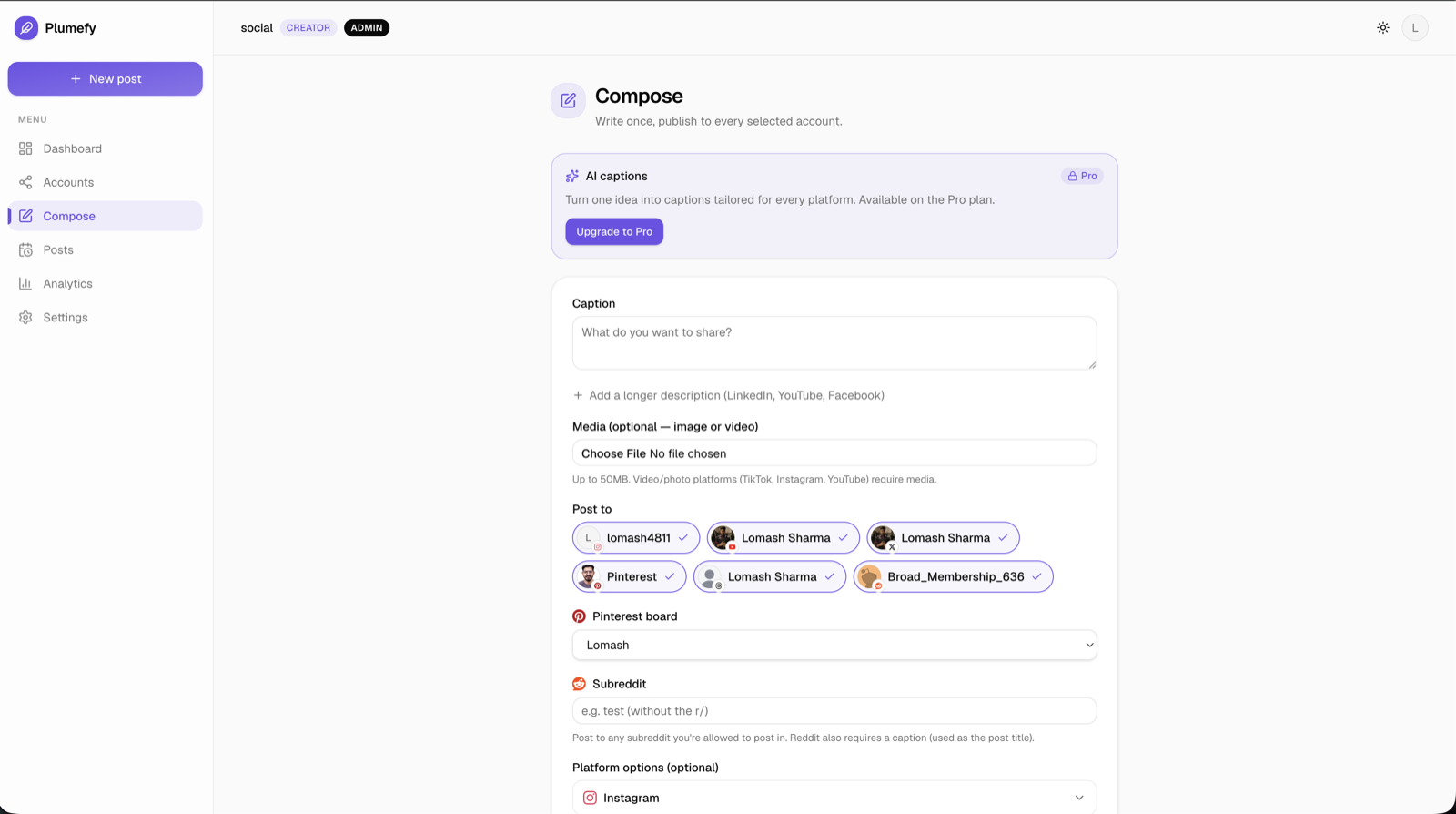
Here is where the workflow gets genuinely pleasant. Instead of uploading the same video into YouTube Studio, TikTok, and Instagram one app at a time, you can upload it once to Plumefy, adjust the caption per platform, and schedule it to YouTube, TikTok, Instagram, and up to 8 other networks from a single calendar. On the Pro plan, Plumefy can even draft platform-tuned captions for you, so the YouTube title reads like a YouTube title and the TikTok caption reads like TikTok.
The free plan gives you 2 connected accounts and 10 posts, which is enough to run a real one-week test. Try Plumefy free and see how a batched, scheduled Shorts week feels compared to daily manual uploads.
FAQ
Can I schedule Shorts natively on YouTube?
Yes. Upload the video in YouTube Studio, and under Visibility choose Schedule with a date and time. It works exactly like scheduling a regular video.
Do scheduled Shorts perform worse?
No. YouTube does not care whether a video was published by hand or on a schedule. Performance comes from the video itself and how viewers respond in the first hours.
What is the best time to post a Short?
Roughly when your audience is awake and idle: early morning, lunch, and evening in your viewers' main time zone are sensible starting points. Test a few slots for a month and let your own analytics decide.
Should my Shorts be on the same channel as my long videos?
For most creators, yes. Shorts can introduce viewers to your long-form work, and one channel keeps your subscriber count compounding in a single place. Split channels only if the topics truly serve different audiences.
How long should a Short be?
As of 2026 you have up to roughly three minutes, but shorter usually holds better. Make it as long as it stays interesting, and no longer.
Post everywhere, once.
Start on the free plan — no card needed, upgrade when you need scheduling.
Start free